You can have a working agentic lakehouse in under two hours. That is not a marketing claim. It is what you get when you combine a free Dremio Cloud trial, a three-view semantic layer, and the built-in AI Agent. This guide walks you through every step to build an agentic lakehouse on Dremio, from signing up to writing your first governance rule. By the end, you will have a live system that answers natural language questions, serves external AI agents via MCP, and accelerates itself automatically.
Who This Guide Is For
This is not a conceptual introduction. If you want to understand what an Agentic Lakehouse is and why AI agents need a governed data foundation before they can be useful, the What Is the Agentic Lakehouse post covers that ground. The Dremio Agentic Lakehouse solutions page maps out the full platform vision.
This guide is for the moment after that. You have read the concepts, you want to build something real, and you want a guide that shows you exactly what to click and what SQL to run.
You should be comfortable writing SQL and have access to either an S3 bucket with some CSV or Parquet files, a PostgreSQL database, or simply the willingness to use Dremio's built-in sample data. Any of those three options will get you to a working system.
What You Will Build
At the end of this guide, your Agentic Lakehouse will be able to:
Connect to at least one real or sample data source
Expose business-ready data through a structured semantic layer
Answer natural language questions using the Dremio built-in AI Agent
Accept queries from external AI agents (like Claude Desktop) via the MCP protocol
Enforce basic row-level security so each user only sees their authorized data
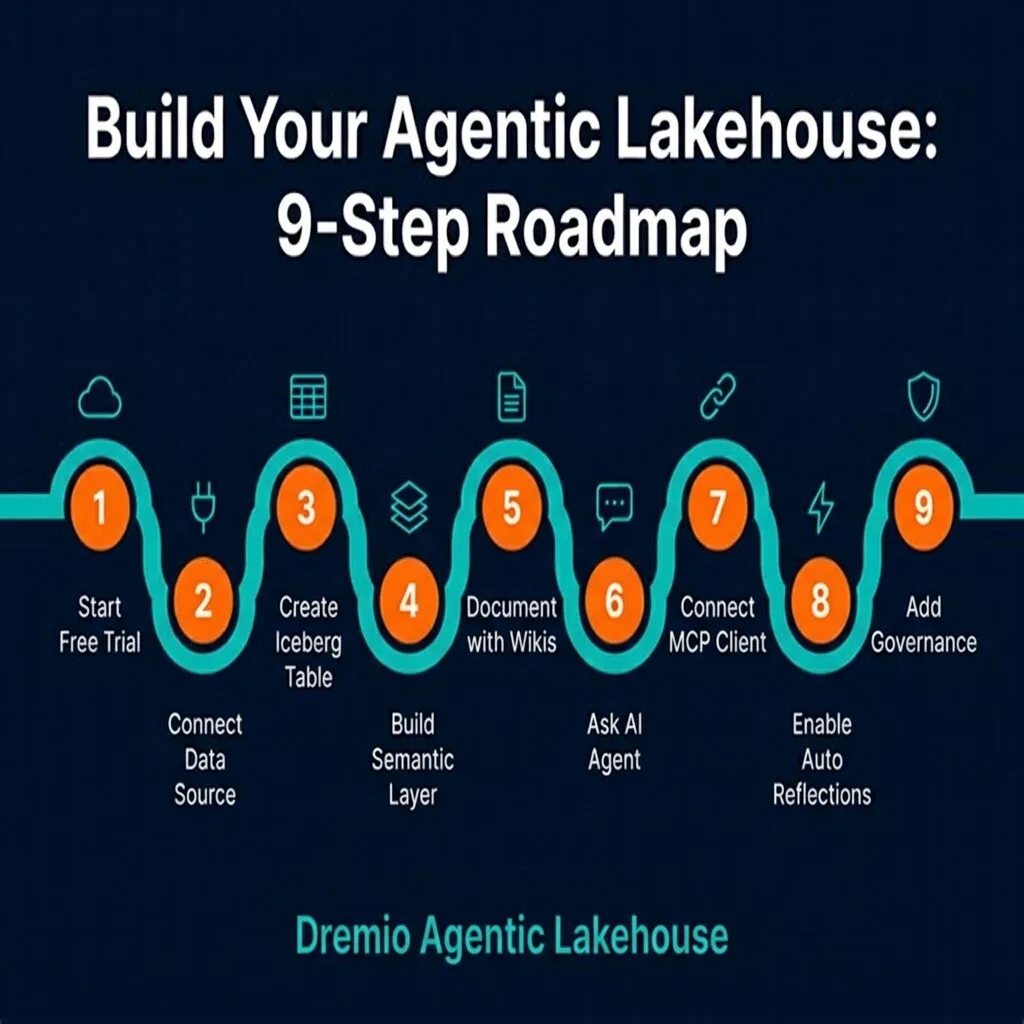
Here is what each step covers and approximately how long it takes:
Step
Action
Time
1
Start your free Dremio Cloud trial
5 min
2
Connect your first data source
5-10 min
3
Create an Iceberg table from your data
5 min
4
Build your semantic layer (Bronze + Gold views)
15 min
5
Document your semantic layer
10 min
6
Ask your first question with the built-in AI Agent
5 min
7
Connect an external AI agent via MCP
15 min
8
Enable Autonomous Reflections
2 min
9
Set up your first governance rule
15 min
Total: approximately 77-82 minutes for a complete, production-grade starting point.
Step 1: Start Your Free Dremio Cloud Trial
Navigate to https://www.dremio.com/get-started. The trial includes 30 days of access and $400 in query credits, with no credit card required. Dremio Cloud is a fully managed SaaS platform, which means you are not setting up Kubernetes clusters or configuring compute. You sign up and get a working data platform in minutes.
After creating your account, you will be prompted to create a project. A project is the primary organizational unit in Dremio Cloud, with its own compute, catalog, and settings. Choose a cloud provider region close to your data (AWS or Azure). The region choice matters if you are connecting to S3 or Azure ADLS because cross-region data transfer adds latency.
Name your project something descriptive. For this tutorial, you can use ecommerce-lakehouse. Once the project is provisioned (usually under two minutes), you will land in the Dremio console. You are ready to connect data.
One important note before proceeding: take two minutes to create a Personal Access Token (PAT). Go to your profile menu in the top-right corner, select Personal Access Tokens, and generate one. You will need it in Step 7 when connecting external AI agents. Copy the token and store it somewhere safe. Dremio only shows it once.
Step 2: Connect Your First Data Source
Dremio connects to data where it lives. You have three practical options for this tutorial:
Option A: Use Sample Data (easiest) Dremio provides built-in sample datasets including TPC-DS, TPC-H, NYC taxi, and others. These are already available in your project under the Samples section in the left sidebar. No configuration needed. If you want to get to the semantic layer and AI Agent steps as fast as possible, start here. The TPC-DS dataset includes an orders-like schema you can use for the views in Step 4.
Option B: Connect an S3 Bucket Go to Sources in the left sidebar, click the plus icon, and select Amazon S3. You will need either an IAM role ARN (recommended, as Dremio connects using role assumption) or an access key and secret. Enter your bucket name and configure any path prefix if your files are in a subdirectory. Once connected, Dremio will display your bucket contents as a browsable catalog. CSV, Parquet, JSON, and ORC files are all supported natively.
Option C: Connect a PostgreSQL Database Select PostgreSQL from the source type list. Enter your host, port (default 5432), database name, username, and password. Dremio will connect and make your schemas and tables available as sources. Queries run in place. Dremio pushes down predicates to Postgres where possible, reducing the data transferred over the network.
For Steps 3 and 4, this guide assumes you are working with order data containing these columns: order_id, customer_id, order_date, amount, status, and region. If you are using sample data, you can adapt the SQL to match the available schema.
Step 3: Create Your First Iceberg Table
If you are using sample data or connecting an existing database (Option A or C), you can skip this step and use the source tables directly in your views. This step applies when you have files in S3 (Option B) and want to persist them as proper Apache Iceberg tables in Dremio's catalog.
Creating an Iceberg table from uploaded files gives you the full benefit of the format: time travel, schema evolution, hidden partitioning, and ACID transactions. Dremio's Open Catalog is built on the Apache Iceberg REST catalog specification, with Apache Polaris as the open-source engine underneath it.
-- Create an Iceberg table from a CSV file in S3
CREATE TABLE my_catalog.ecommerce.orders
USING ICEBERG AS
SELECT *
FROM TABLE(
  read_files('s3://my-bucket/uploads/orders.csv',
    format => 'csv',
    inferSchema => true
  )
);
After running this statement in the Dremio SQL editor, your data is stored as a proper Iceberg table with a catalog entry, metadata files, and data files. You can now query it with SQL, run time-travel queries, and build views on top of it, all without copying data out of S3.
Replace my_catalog with your actual catalog name (visible in the left sidebar under Catalogs). Replace the S3 path with your actual bucket and file location.
Step 4: Build Your Semantic Layer
This is the step most people underestimate, and it is the one that determines whether your AI Agent gives accurate answers or confusing ones. The semantic layer is a set of SQL views that translate raw source schema into business-meaningful concepts. Without it, an AI Agent looking at your Iceberg table sees columns named amt, stat, and cust_id and has to guess what they mean.
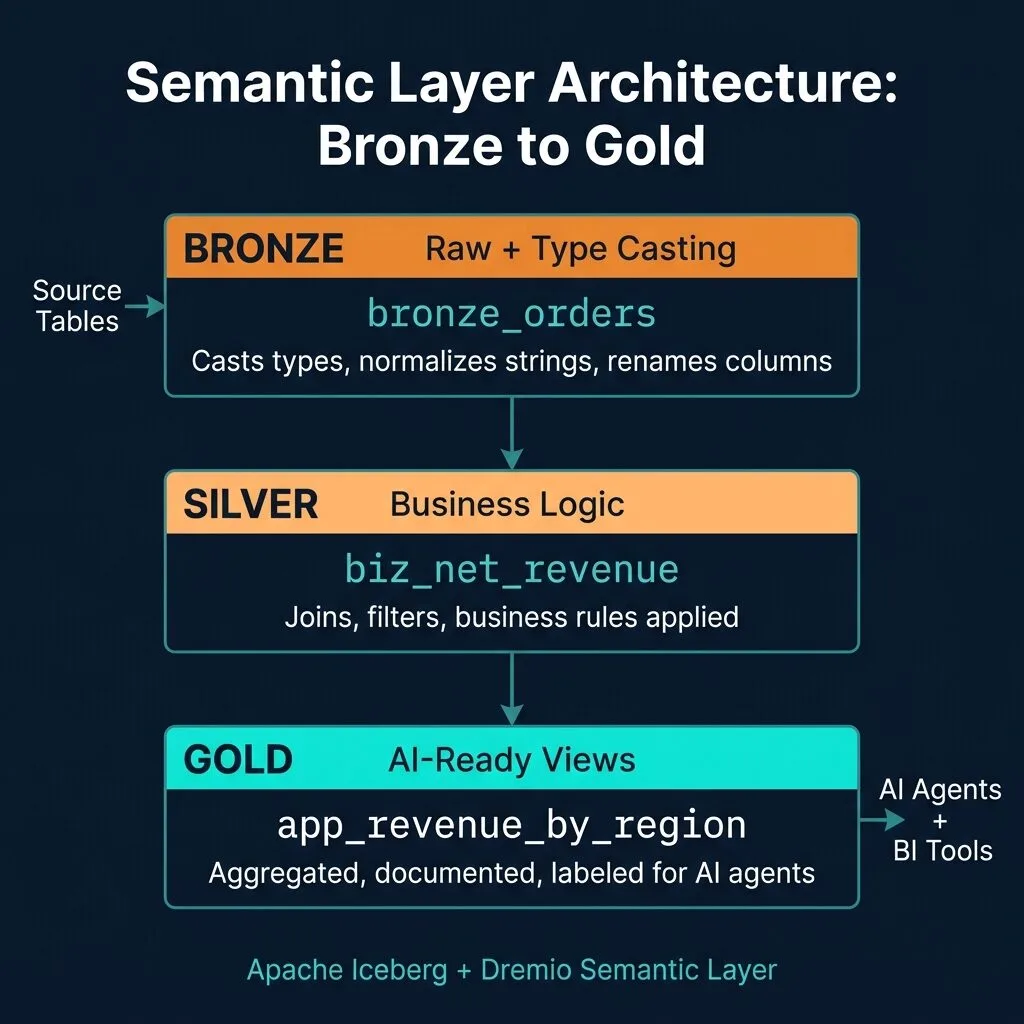
To understand the full theory behind why this matters for AI, the What Is a Semantic Layer post is the right reference. For this tutorial, you need to build two views: a Bronze prep view and a Gold application view.
Why Two Views Instead of Three
A full medallion architecture has Bronze, Silver, and Gold. For a tutorial of this scope, you can collapse Silver and Gold into a single Gold view by doing the business logic and aggregation in one place. As your lakehouse grows and you have multiple teams building on top of the same prep layer, you will want to separate Silver (joins and business rules) from Gold (aggregations for specific use cases). Start simple, refactor when you need to.
The Bronze View: Data Preparation
The Bronze view does one thing: it takes raw source data and makes it consistently typed and consistently named. No business logic. No aggregations. Just cleaning.
-- Bronze view: clean and normalize the raw orders table
CREATE OR REPLACE VIEW my_catalog.semantic.bronze_orders AS
SELECT
  order_id,
  customer_id,
  CAST(order_date AS DATE) as order_date,
  CAST(amount AS DECIMAL(10,2)) as order_amount_usd,
  LOWER(status) as order_status,
  region
FROM my_catalog.ecommerce.orders;
Notice what this view does: it casts order_date from a string (common in CSV files) to a proper DATE, casts amount to a typed decimal with a clear unit suffix (_usd), and normalizes status to lowercase so that 'Refunded' and 'refunded' are treated the same. The Bronze view is the contract between your raw source and everything built on top of it.
The Gold View: AI-Ready Aggregations
The Gold view is what your AI Agent and BI tools will query. It aggregates data into named business metrics, uses meaningful column names, and filters out noise (cancelled orders, for example, are usually excluded from revenue reporting).
-- Gold view: business metrics ready for AI Agent queries
CREATE OR REPLACE VIEW my_catalog.semantic.app_revenue_by_region AS
SELECT
  DATE_TRUNC('month', order_date) as revenue_month,
  region,
  SUM(order_amount_usd) as gross_revenue,
  SUM(CASE WHEN order_status != 'refunded' THEN order_amount_usd ELSE 0 END) as net_revenue,
  COUNT(DISTINCT customer_id) as paying_customers
FROM my_catalog.semantic.bronze_orders
WHERE order_status != 'cancelled'
GROUP BY 1, 2;
Every column name in this view is a business concept: gross_revenue, net_revenue, paying_customers, revenue_month. When the AI Agent reads this view, it does not need to infer what amt means. The schema tells the story. This is what makes the difference between an AI Agent that says "I'm not sure what column to use for revenue" and one that immediately writes correct SQL.
Step 5: Document Your Semantic Layer
Good SQL views are a necessary condition for AI accuracy. They are not sufficient on their own. The AI Agent also reads the documentation attached to your views: Wiki descriptions, column descriptions, and Labels. These metadata elements are what allow the agent to choose the right view when a user asks a question.
To add a Wiki to your Gold view:
Navigate to my_catalog.semantic.app_revenue_by_region in the Dremio catalog browser
Click the Wiki tab
Write a brief description in markdown. Example:
## app_revenue_by_region

Monthly revenue aggregated by geographic region.

**Use for:** Revenue reporting, regional performance analysis, executive dashboards.

**Key metrics:**
- `gross_revenue`: Total order value before refund adjustments
- `net_revenue`: Revenue after excluding refunded orders
- `paying_customers`: Distinct customer count per region per month

**Filters applied:** Cancelled orders excluded. For cancelled order analysis, query bronze_orders directly.
Next, add a Label. Click the Labels section on the view detail page and add revenue_metric. Labels help you organize your catalog and, more importantly, help the AI Agent understand the purpose and trustworthiness of a dataset.
Finally, you can trigger AI-generated metadata from the view detail page. Dremio will analyze the schema and existing data to generate column descriptions automatically. Review the generated descriptions and edit any that are inaccurate. This takes about 30 seconds and meaningfully improves AI Agent answer quality.
Step 6: Ask Your First Question with the Built-in AI Agent
Open the AI Agent chat from the Dremio console. Look for the chat icon in the left sidebar or the "Ask AI" button depending on your console version. This is not a basic chatbot. It is a query planning and execution engine that uses your semantic layer to generate accurate SQL and retrieve real results.
Type this question: "What is total revenue by region this month?"
Watch what happens in the agent's reasoning trace (visible in the interface):
The agent searches your catalog metadata for views tagged with revenue-related concepts
It finds app_revenue_by_region because of the column name gross_revenue and the Wiki description you wrote
It generates SQL that filters revenue_month to the current month using DATE_TRUNC('month', CURRENT_DATE)
It executes the query through Dremio's query engine
It returns the results as a table and, where the data supports it, as a bar chart
The accuracy of that answer is directly tied to Step 5. If you had not written the Wiki, the agent might still find the correct view, but it might also query bronze_orders directly and produce raw order-level data instead of the monthly aggregation you wanted. Documentation is not optional for AI accuracy. It is the specification.
Try a few more questions to explore the agent's capabilities:
"Which region had the highest net revenue last quarter?"
"Show me paying customer counts for each region over the past six months"
"What percentage of orders were refunded this month?"
Each of these maps cleanly to the app_revenue_by_region view you built.
Step 7: Connect an External AI Agent via MCP
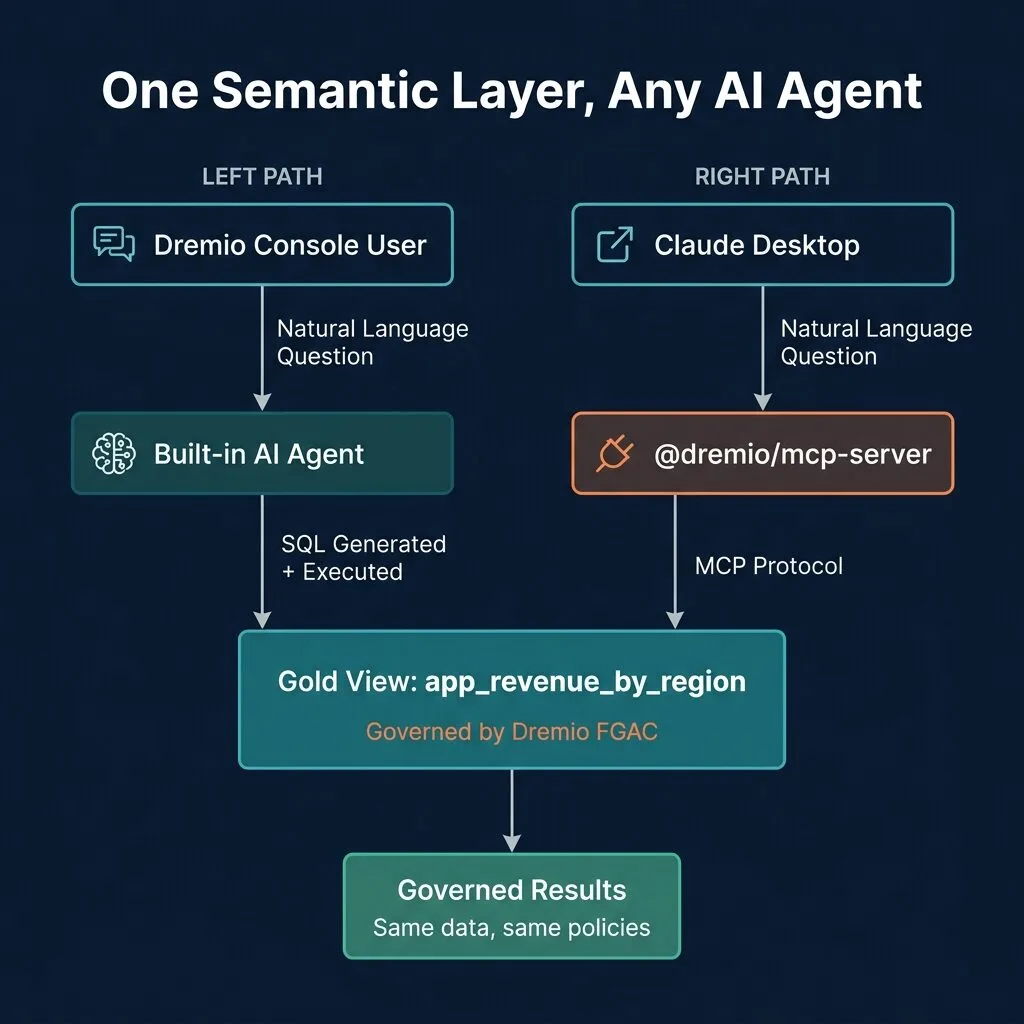
The built-in AI Agent is one interface. MCP (Model Context Protocol) opens the same governed data to any external AI agent: Claude, Cursor, Continue, or any MCP-compatible tool. The same Gold views, the same governance rules, the same query engine. Different interface.
For the full background on how MCP works, the Model Context Protocol specification explains the protocol in detail. Here is the practical setup.
Install the MCP Server
The official Dremio MCP server is available via npm. You do not need to install it permanently. The npx command handles it on demand.
# Verify you have Node.js installed
node --version

# Test the MCP server (optional)
npx -y @dremio/mcp-server --help
Get Your Personal Access Token
If you followed the note in Step 1, you already have a PAT. If not, go to your profile menu in Dremio Cloud, select Personal Access Tokens, and generate one with appropriate scope. For a read-only AI agent setup, grant query privileges only. No catalog write access is needed.
Configure Claude Desktop (or Another MCP Client)
Open your Claude Desktop configuration file. On macOS it is at ~/Library/Application Support/Claude/claude_desktop_config.json. On Linux it is at ~/.config/Claude/claude_desktop_config.json. Add the following server configuration:
Replace DREMIO_ENDPOINT with your actual project URL (visible in the Dremio Cloud console URL bar) and DREMIO_TOKEN with the PAT you generated. Restart Claude Desktop after saving.
Ask the Same Question
Open a Claude Desktop conversation and ask: "What is total revenue by region this month?"
Claude will use the MCP server to explore your Dremio catalog, find the app_revenue_by_region view, generate and execute SQL, and return results. The answer will be the same data as the built-in AI Agent returned, governed by the same access policies, and backed by the same Iceberg tables. The protocol changes; the data does not.
Step 8: Enable Autonomous Reflections
Open Project Settings from the top navigation menu. Navigate to Query Acceleration. Toggle Autonomous Reflections to enabled.
That is the entire step. Dremio will now observe your query patterns in the background, tracking which views are queried, which filters and aggregations appear most often, and which queries take longest. It then automatically creates and maintains Reflections to accelerate them. Reflections are materialized acceleration structures that Dremio manages internally, similar to smart materialized views but with automatic pruning and refresh.
The important expectation to set: Autonomous Reflections need approximately 24 hours of query activity before they start creating acceleration structures. This is by design. Dremio needs enough pattern data to know which Reflections will actually be useful versus which ones would waste storage. After the initial observation period, Reflections are created, updated, and retired automatically as query patterns evolve.
The Autonomous Performance blog covers this in more depth. For now, the operational reality is: you enable it once and queries that currently take seconds will eventually take milliseconds. No DBA intervention required.
Step 9: Set Up Your First Governance Rule
AI agents that can query anything are not safe for production. Row-level security (RLS) is how you ensure that a user's AI agent session only returns data the user is authorized to see. In Dremio, this is part of Fine-Grained Access Control (FGAC).
For this tutorial, create a simple rule: users in the us-east role can only see orders from the us-east region, users in the emea role can only see emea data, and so on.
In Dremio Cloud, navigate to the Privileges section (Admin > Privileges or through the catalog item's permissions). Create a Row Access Policy on my_catalog.semantic.app_revenue_by_region:
-- Row Access Policy: filter region based on user role
CREATE ROW ACCESS POLICY region_access_policy
AS (region VARCHAR)
RETURNS BOOLEAN
USING (
  region = CURRENT_ROLE()
  OR CURRENT_ROLE() = 'admin'
);

-- Apply to the Gold view
ALTER VIEW my_catalog.semantic.app_revenue_by_region
  SET ROW ACCESS POLICY region_access_policy (region);
After applying this policy, the governance effect is automatic and universal. When a user in the us-east role asks the built-in AI Agent "What is total revenue by region?", the agent will only return rows where region = 'us-east', even if the generated SQL has no WHERE clause. The policy is applied at the engine level before results are returned.
The same applies to the MCP-connected Claude Desktop session. The user's token carries their role identity. Dremio enforces the policy regardless of which interface generated the query. That is the key property of a governed agentic lakehouse: governance is not an add-on to individual interfaces. It is enforced at the data layer itself.
Test this by asking the AI Agent the same revenue question while logged in as different role users and verifying that each user sees only their region's data.
User Role
Regions Visible
AI Agent Behavior
us-east
us-east only
Returns us-east data only
emea
emea only
Returns emea data only
admin
All regions
Returns all regions
Common Gotchas to Avoid
After going through these steps with many users, three issues come up repeatedly. Knowing them in advance saves troubleshooting time.
Gotcha 1: OAuth Token Expiry in MCP Connections
If you configured the MCP server with an OAuth token (from a browser-based auth flow) rather than a Personal Access Token, the connection will work initially and then fail after a few hours when the token expires. Claude Desktop does not handle token refresh automatically. The fix is simple: always use a PAT for MCP connections. PATs can be created with longer lifetimes (days to years) and do not require a browser-based refresh flow.
Gotcha 2: View Dependency Chains
Your Bronze and Gold views have a dependency: app_revenue_by_region queries bronze_orders. If you update bronze_orders in a way that removes or renames a column that app_revenue_by_region references, the Gold view will break. Always update views top-down: update Bronze first, verify it returns the expected schema, then update Gold. If you need to drop and recreate Bronze, update Gold first to remove the dependency, recreate Bronze, then update Gold to re-add the reference.
Gotcha 3: Autonomous Reflections Are Not Instant
After enabling Autonomous Reflections, queries will not immediately run faster. The observation phase takes approximately 24 hours. This surprises users who expect immediate acceleration. Plan for this in your testing timeline. Enable Autonomous Reflections early in your setup process so the observation phase is complete by the time you move to production usage.
Gotcha
Symptom
Fix
OAuth token expiry
MCP connection fails after hours
Use PAT instead of OAuth token
View dependency break
Gold view errors after Bronze update
Update views top-down, not bottom-up
Reflections not kicking in
No query speedup after enabling
Wait 24 hours for observation period
What to Build Next
You now have a working foundation. The next decisions depend on what your organization needs most.
Add more data sources. Connect your product catalog, customer database, and marketing attribution data. The power of an agentic lakehouse grows with the number of governed sources it can reason across. A user asking "Which customer segment has the highest refund rate by product category?" is only answerable if product, customer, and order data are all connected.
Build domain-specific semantic layers. The e-commerce example here covers one domain. Your organization likely has finance, operations, marketing, and customer success each with their own key metrics. Build a semantic layer for each domain, with Gold views appropriate to each audience.
Configure domain-specific MCP agents. A finance-focused AI agent should only have access to finance-domain views. Configure separate MCP server instances with different credentials and different catalog path access. This gives you targeted AI agents without exposing every domain to every agent.
Explore AI SQL Functions for unstructured data. Dremio includes SQL functions that run AI inference directly in SQL, covering tasks like sentiment analysis on customer reviews, entity extraction from support tickets, and classification of free-text fields. These functions bring unstructured data into the same governed query layer as your structured Iceberg tables.
The foundation you built today, a connected source, a semantic layer, a documented catalog, and working AI agent interfaces, is the starting point for all of those capabilities. Each addition builds on what you already have rather than requiring a separate system.
Start your free 30-day Dremio Cloud trial at https://www.dremio.com/get-started. The $400 in included credits is more than enough to complete this tutorial and begin building your next layer. No credit card required, and you can have a running agentic lakehouse before your next planning meeting.
Try Dremio Cloud free for 30 days
Deploy agentic analytics directly on Apache Iceberg data with no pipelines and no added overhead.
Ingesting Data Into Apache Iceberg Tables with Dremio: A Unified Path to Iceberg
By unifying data from diverse sources, simplifying data operations, and providing powerful tools for data management, Dremio stands out as a comprehensive solution for modern data needs. Whether you are a data engineer, business analyst, or data scientist, harnessing the combined power of Dremio and Apache Iceberg will undoubtedly be a valuable asset in your data management toolkit.
Oct 12, 2023·Product Insights from the Dremio Blog
Table-Driven Access Policies Using Subqueries
This blog helps you learn about table-driven access policies in Dremio Cloud and Dremio Software v24.1+.
Aug 31, 2023·Dremio Blog: News Highlights
Dremio Arctic is Now Your Data Lakehouse Catalog in Dremio Cloud
Dremio Arctic bring new features to Dremio Cloud, including Apache Iceberg table optimization and Data as Code.