Maintaining a well-structured and version-controlled semantic layer is crucial for ensuring consistent and reliable data models. With Dremio’s robust semantic layer, organizations can achieve unified, self-service access to data, making analytics more agile and responsive. However, as teams grow and models evolve, maintaining this layer can become increasingly complex. This is where automation and version control come into play.
By integrating GitHub Actions with dbt (data build tool), you can automate your dbt model runs and streamline the development process. In this post, we will walk you through setting up a workflow where dbt models are developed on a "development" branch and then automatically run when a pull request is merged into the "main" branch. This process, when layered on top of Dremio’s integrated catalog versioning, creates a seamless CI/CD pipeline, ensuring that your semantic layer is always up-to-date, versioned, and synchronized with your data platform.
Whether you're working on enhancing your data transformations or simply ensuring version control across teams, automating dbt model runs with GitHub Actions helps simplify model management and deployment. Let’s dive into the setup and discover how this integration can bring both efficiency and control to your Dremio-based data workflows.
Before we go through this exercise, if you haven't used Dremio's dbt integration here are several resources to learn more about how it works:
To effectively manage your data transformation workflows, understanding the integration between dbt and Dremio’s semantic layer is essential. At its core, Dremio provides a unified platform where data can be queried, virtualized, and transformed across multiple sources. The semantic layer in Dremio abstracts the complexities of these transformations, allowing analysts and engineers to work with clean, governed datasets. However, as data models grow in complexity, it becomes necessary to implement more robust version control and automation strategies.
This is where dbt shines. As a popular open-source tool, dbt allows data teams to adopt software development practices—such as version control, testing, and modularization—in the context of data transformation. Combining GitHub’s version control capabilities with dbt’s model transformation workflows can further streamline the process of managing changes to your semantic layer.
In this blog, we focus on automating the CI/CD process of dbt models with GitHub Actions. By setting up a workflow where all model development happens on a “development” branch and production runs are triggered by pull requests into the “main” branch, teams can ensure that any changes are systematically versioned and validated before deployment.
This approach offers several advantages:
Version control: Seamlessly track and manage changes to dbt models using GitHub.
Automated testing and deployment: Ensure that new models are tested and run automatically upon merging into the main branch.
Collaboration: Improve collaboration across teams by using a structured branching strategy.
Before diving into the GitHub Actions setup, let’s ensure your environment is ready for dbt development and integrated with Dremio.
Try Dremio’s Interactive Demo
Explore this interactive demo and see how Dremio's Intelligent Lakehouse enables Agentic AI
Before we begin automating dbt model runs with GitHub Actions, it’s essential to set up the development environment and ensure that everything is properly configured. In this section, we’ll walk through the steps to integrate Dremio, dbt, and GitHub so you can efficiently develop and version-control your semantic layer.
1. Prerequisites
To get started, make sure you have the following tools and resources ready:
Dremio Cloud or Local Dremio Instance: Ensure your Dremio environment is ready and connected to the necessary data sources. If you’re using Dremio Cloud, make sure your project and catalog are set up.
dbt-dremio Plugin: Install the dbt-dremio package in your python envionment to enable dbt to interact with your Dremio instance.
GitHub Account: Set up a GitHub repository to store and version-control your dbt project.
GitHub Actions Enabled: Ensure GitHub Actions are enabled for your repository to allow automation.
2. Configuring Your Local Environment for dbt
If you haven't already here is how you'd setup your local python environment
Set up a Python virtual environment:
Create a virtual environment in your project folder:
python3 -m venv venv
Activate the virtual environment (location of activate script may be different on Windows):
source venv/bin/activate
Install the dbt-dremio connector:
With your virtual environment active, install the necessary dbt plugin:
pip install dbt-dremio
Configure your dbt profiles.yml to connect to Dremio:
In the ~/.dbt/profiles.yml file, add the necessary connection details for Dremio Cloud or your local Dremio instance. (These settings will be setup by dbt-dremio when running dbt init later on)
Example configuration (Refer to dbt blog for configuration details):
4. Branching Strategy: Setting Up "Development" and "Main" Branches
To implement proper version control, it’s essential to create two main branches:
Development branch: For staging and testing new models.
Main branch: For production-ready models.
Create and switch to the development branch:
git checkout -b development
Push the new branch to GitHub:
git push origin development
From this point, any new model development should happen on the development branch, and once it’s ready, a pull request will be created to merge changes into the main branch.
5. Setting Up GitHub Secrets for Dremio Integration
To securely connect GitHub Actions to Dremio, store sensitive information like API tokens or credentials as GitHub Secrets.
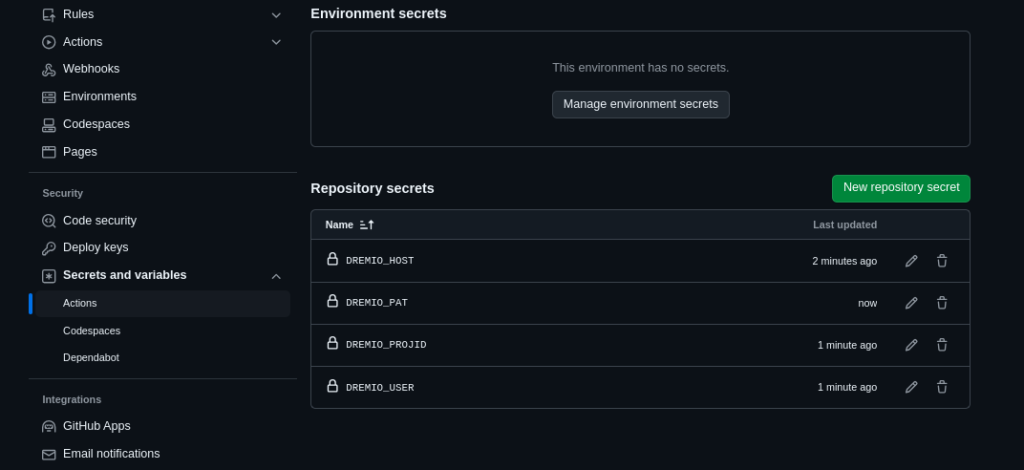
In your GitHub repository, navigate to Settings > Secrets and variables > Actions.
Add secrets for the following:
DREMIO_HOST: The Dremio instance URL.
DREMIO_USER: Your Dremio username.
DREMIO_PROJID: Your Dremio Project ID (for cloud).
DREMIO_PASSWORD: Your Dremio password (for Dremio software if not using PAT tokens).
DREMIO_PAT: Personal Access Token (if applicable).
These secrets will be used in the GitHub Actions workflow to securely interact with your Dremio instance during dbt runs. Feel free to make more secrets for other values in your dbt profile you may want to hide like space, space_folder, object_storage, object_storage_schema.
With your environment set up, you’re now ready to start automating dbt model runs with GitHub Actions. In the next section, we’ll walk through the process of creating a workflow that triggers a dbt run every time a pull request is made to the "main" branch.
Creating the GitHub Actions Workflow
Now that your environment is set up and properly configured, it’s time to create the GitHub Actions workflow that will automate running your dbt models whenever changes are made to the "main" branch. This workflow will be triggered by pull requests from the "development" branch, ensuring that all changes are properly tested and validated before being applied to your production models.
1. Understanding GitHub Actions
GitHub Actions is a powerful CI/CD platform built into GitHub that allows you to automate tasks such as testing, building, and deploying code. In our case, it will be used to automate running dbt models in your Dremio environment every time a pull request is merged into the "main" branch.
2. Creating the Workflow File
The GitHub Actions workflow is defined using a YAML file. You will place this file in the .github/workflows/ directory of your repository. Let’s create a workflow that will:
Trigger on pull requests to the main branch.
Set up the necessary Python environment to run dbt.
Execute the dbt run command to apply the models to Dremio.
Create the .github/workflows/dbt_dremio.yml file in your repository:
Step 1: Checkout the Code This step uses the actions/checkout action to pull down your repository’s code so the workflow has access to the dbt project.
Step 2: Set Up Python In this step, the latest version of Python is installed to ensure the environment is ready for dbt. This also sets up the Python virtual environment.
Step 3: Install dbt-dremio The dbt-dremio package is installed so that dbt can interact with your Dremio instance. This includes setting up the virtual environment and installing the necessary dependencies.
Step 4: Set Up dbt Profile Using our secrets we setup out dbt profile.
Step 5: Run dbt Models Finally, the workflow runs the dbt run command to apply the changes to your dbt models. This command executes the models you’ve developed in the "development" branch and applies them to the Dremio instance after merging into the "main" branch.
4. Committing the Workflow to GitHub
Once you’ve created the workflow file, commit it to your repository:
git add .github/workflows/dbt_dremio.yml
git commit -m "Add GitHub Actions workflow to run dbt models on Dremio"
git push origin main
This will activate the workflow for your repository, and it will now automatically trigger when you open a pull request to the "main" branch.
With your GitHub Actions workflow in place, every time you develop models on the "development" branch and create a pull request to merge into the "main" branch, your dbt models will automatically be run and applied to your Dremio instance. In the next section, we’ll test the setup and ensure everything works as expected.
Testing and Validating the Workflow
With the GitHub Actions workflow now set up, it’s time to test and validate that everything works as expected. This section will walk you through the process of creating a pull request, triggering the workflow, and verifying that your dbt models run successfully on Dremio.
1. Making a Pull Request
To trigger the GitHub Actions workflow, you need to make a pull request from the development branch into the main branch.
Switch to the development branch if you’re not already on it:
git checkout development
Make changes to your dbt models (e.g., update or add a new model in the models/ directory):
For example, create a new model in the models/example/ directory:
-- models/example/my_new_model.sql SELECT * FROM Samples."samples.dremio.com"."NYC-taxi-trips-iceberg" WHERE passenger_count > 1
*This assumes you've added the sample source
Commit the changes to the development branch:
git add models/example/my_new_model.sql git commit -m "Add new dbt model to filter NYC taxi trips" git push origin development
Create a pull request from the development branch to the main branch using the GitHub interface:
Go to your GitHub repository.
Navigate to the Pull Requests tab and create a new pull request, selecting the development branch as the source and the main branch as the target.
2. Monitoring the GitHub Actions Workflow
Once the pull request is created, the GitHub Actions workflow you set up earlier will automatically trigger.
Navigate to the Actions tab in your GitHub repository.
You should see the workflow running. GitHub will display the progress of the workflow, including each of the steps you defined in the dbt_dremio.yml file:
Checkout code
Set up Python
Install dbt-dremio
Create Profile
Run dbt models
Monitor the output logs:
Each step will produce logs that you can inspect for details.
Ensure that there are no errors and that the dbt run step successfully completes, indicating that the models were applied to Dremio.
3. Verifying the dbt Models on Dremio
After the GitHub Actions workflow completes, it’s important to verify that the dbt models were applied correctly to your Dremio instance.
Log in to your Dremio Cloud or local instance.
Navigate to the space or catalog where your dbt models were materialized.
Check for the new or updated model:
For example, if you added a new model (e.g., my_new_model), verify that it appears in the specified space or Arctic catalog.
Run a query against the model to ensure it works as expected: SELECT * FROM dbt_practice.my_new_model LIMIT 10
4. Debugging the Workflow (If Necessary)
If the workflow fails or you encounter errors during the process, use the following steps to debug:
Review the error logs in the Actions tab to identify the point of failure.
Common issues to check:
Incorrect or missing Dremio connection details in the profiles.yml file.
Missing or incorrect GitHub secrets for Dremio credentials.
Incorrect dbt model configurations.
Rerun the workflow after making the necessary fixes:
You can rerun the workflow directly from the Actions tab in GitHub.
5. Merging the Pull Request
Once the workflow has successfully run and you’ve validated the changes in Dremio, you can safely merge the pull request into the main branch.
In the Pull Requests tab, go to your open pull request.
Click Merge Pull Request to finalize the changes.
This will merge the changes into the main branch, applying the new or updated dbt models to your production environment.
Best Practices and Considerations
Now that you have successfully set up GitHub Actions to automate your dbt model runs with Dremio, let’s discuss some best practices and considerations for maintaining a smooth and scalable workflow. These tips will help you streamline your automation and ensure that your dbt models and Dremio environment are secure, efficient, and maintainable over time.
1. Managing Secrets Securely
As shown in the previous steps, the profiles.yml file is generated dynamically using GitHub Secrets. This ensures that sensitive credentials, such as your Dremio host, username, password, or Personal Access Token (PAT), are securely managed and never exposed in your codebase.
Use GitHub Secrets for sensitive information: Always store credentials and sensitive data, such as database connection details, in GitHub Secrets rather than hardcoding them into the repository. This protects your information from being exposed to unauthorized users.
Rotate secrets regularly: To maintain a secure environment, regularly rotate your Dremio credentials and update the corresponding GitHub Secrets.
2. Structuring Your dbt Project
A well-structured dbt project makes it easier to manage and version control your models. Consider the following when organizing your project:
Modularize your models: Break down large transformation processes into smaller, reusable models. This promotes maintainability and allows for independent testing of each model.
Use the ref() function effectively: dbt's ref() function helps establish dependencies between models. Ensure that you leverage this function to build a clear data lineage and manage model dependencies effectively.
Document your models: Use schema.yml files to add descriptions, test coverage, and other documentation to your models. This improves collaboration within teams and ensures that everyone understands the purpose and structure of each model.
3. Version Control and Branching Strategy
Implementing a proper version control strategy is crucial for maintaining an organized and scalable dbt project:
Branching Strategy: As demonstrated in this blog, use separate branches for development and production (e.g., development and main branches). All new models and updates should be developed and tested on the development branch. When ready, these changes can be merged into the main branch via pull requests, triggering the automated dbt model run.
Pull Request Workflow: Always use pull requests (PRs) for merging changes into the main branch. This allows for peer review, testing, and validation before changes are deployed to production. The automated GitHub Actions workflow ensures that dbt models are run and validated upon merging.
4. Running dbt Tests as Part of Your CI/CD Pipeline
In addition to running the dbt run command to apply your models, you can integrate dbt tests into your GitHub Actions workflow to ensure data integrity and accuracy:
Define dbt tests: Use schema.yml files to define tests for your models, such as uniqueness, null value checks, and relationships between tables.
Run dbt tests automatically: Modify your GitHub Actions workflow to include the dbt test command after running the models. This will validate that the data in your models meets the defined expectations.Example YAML snippet to add dbt tests:
- name: Run dbt tests
  run: |
    source venv/bin/activate
    cd my_project
    dbt test
5. Managing Large Workflows
As your project grows, running all dbt models for every pull request can become time-consuming. You can optimize the workflow by selectively running only the models that have changed or those that depend on updated models.
Use the --select flag: dbt allows you to specify which models to run using the --select flag. For example, if only certain models were updated, you can run those models individually:bashCopy codedbt run --select my_model
Parallelize runs: If your dbt models are independent of each other, you can configure GitHub Actions to run models in parallel, reducing execution time.
6. Monitoring and Debugging Workflow Failures
Workflow failures can occur for various reasons, such as misconfigurations in your dbt models or connection issues with Dremio. GitHub Actions provides detailed logs to help you monitor and debug these issues:
Monitor the Actions tab: GitHub logs each step of your workflow in real-time. If a failure occurs, review the logs to identify which step failed and the root cause of the error.
Common failure points: Check for issues like incorrect Dremio credentials, missing environment variables, or syntax errors in your dbt models.
Rerun workflows: After fixing the issue, you can rerun the failed workflow directly from the Actions tab to verify that the problem has been resolved.
Conclusion
By integrating GitHub Actions into your dbt and Dremio workflows, you’ve unlocked a powerful, automated CI/CD pipeline for managing and version-controlling your semantic layer. This setup not only ensures that your data models are always up-to-date, but also promotes collaboration, security, and efficiency within your team.
Through proper use of secrets, dbt tests, and structured version control strategies, you can scale your Dremio dbt project with confidence. Whether you’re working with Dremio Cloud or Dremio Software, this automation process allows you to stay agile in the ever-evolving world of data management.
As you continue to refine and optimize your workflow, remember that automation is key to maintaining a high-performing data infrastructure. Embrace the power of version control and CI/CD, and you’ll be well on your way to building a robust, scalable, and secure data platform.
Try Dremio Cloud free for 30 days
Deploy agentic analytics directly on Apache Iceberg data with no pipelines and no added overhead.
Hadoop Modernization on AWS with Dremio: The Path to Faster, Scalable, and Cost-Efficient Data Analytics
Hadoop modernization on AWS with Dremio represents a significant leap forward for organizations looking to leverage their data more effectively. By migrating to a cloud-native architecture, decoupling storage and compute, and enabling self-service data access, businesses can unlock the full potential of their data while minimizing costs and operational complexity.
Nov 26, 2025·Dremio Blog: Partnerships Unveiled
Using Dremio, lakeFS & Python for Multimodal Data Management
With lakeFS, you version everything: Iceberg tables, images, models, logs. With Dremio, you query and analyze it all, structured or not, at scale. Together, they bring Git-style control and interactive querying to your data lake, so you can build more intelligent, version-aware workflows without sacrificing flexibility or performance.
Jun 11, 2019·Dremio Blog: Partnerships Unveiled
What is ADLS Gen2 and Why it Matters
Described by Microsoft as a “no-compromise data lake”, ADLS Gen 2 extends the capabilities of Azure Blob Storage and is optimized for large scale analytics workloads.